基于 Cloudflare Workers 与 R2 的博客图片代理部署指南
本文详细介绍了如何利用 Cloudflare Workers 和 R2 存储桶搭建一个为博客服务的图片代理服务。该方案能够实现图片的高效托管、跨域访问与长期缓存,从而提升博客的图片加载速度与兼容性。
一、方案概述
整个方案分为三个核心步骤:
- 配置 R2 存储桶:创建存储桶,开启公共访问,并配置 CORS 策略。
- 部署 Workers 代理:编写并部署一个 Worker 脚本,用于代理和缓存图片请求。
- 绑定自定义域名:为 Workers 服务配置自定义域名(如博客域名),完成服务集成。
最终实现一个高效、可缓存且支持跨域的博客图片托管与代理服务。
二、配置 Cloudflare R2 存储桶
2.1 创建存储桶并开启公共访问
- 在 Cloudflare 控制台中创建 R2 存储桶。
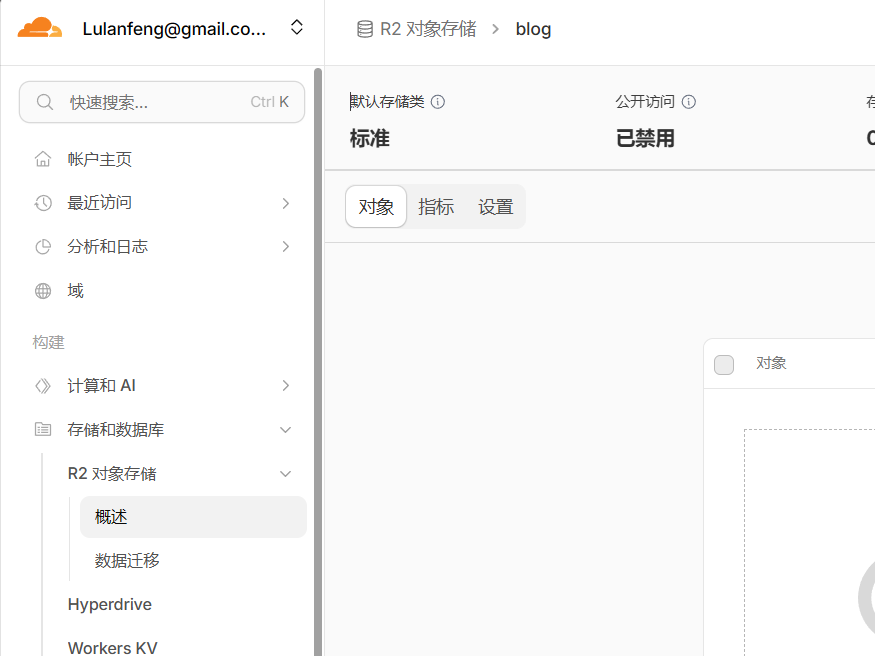
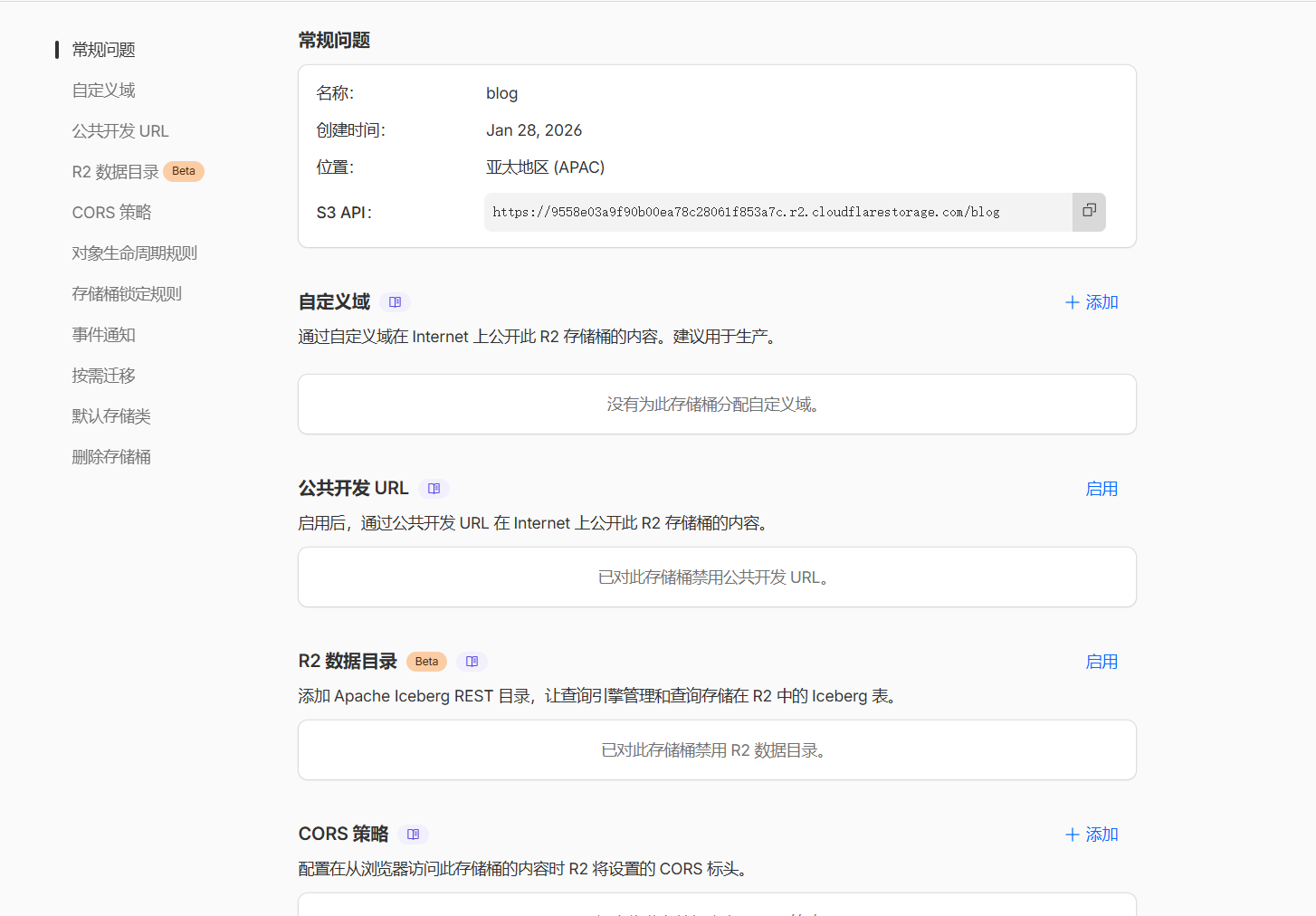
- 为该存储桶开启 公共开发 URL,以便通过固定域名访问桶内资源。
2.2 配置 CORS 策略
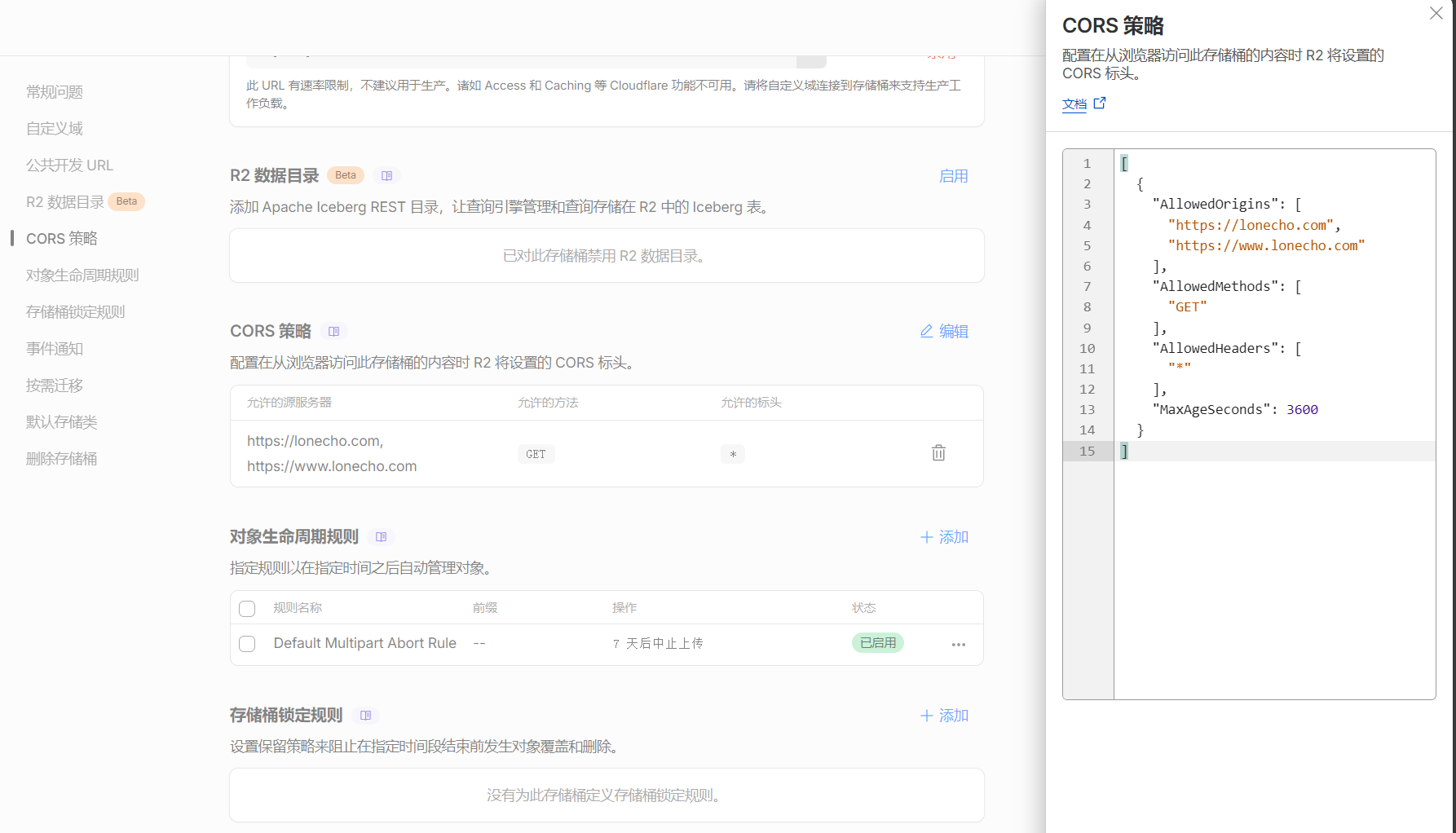
为允许您的博客域名跨域访问图片,需在 R2 存储桶设置中添加 CORS 策略。
配置示例(JSON):
[
  {
    "AllowedOrigins": [
      "https://lonecho.com",
      "https://www.lonecho.com"
    ],
    "AllowedMethods": [
      "GET"
    ],
    "AllowedHeaders": [
      "*"
    ],
    "MaxAgeSeconds": 3600
  }
]说明:此策略仅允许来自指定域名的 GET 请求,预检请求缓存时间为 3600 秒。其余配置可保持默认。配置截图参考:
- 存储桶概览与公共 URL 设置
- CORS 策略配置界面 (1)
- CORS 策略配置界面 (2)
三、部署 Cloudflare Workers 代理服务
3.1 创建应用
在 Cloudflare 控制台的 Workers 和 Pages 中创建新应用,选择 helloworld 模板。
3.2 部署代理脚本
将模板代码替换为以下脚本,并将 R2_PUBLIC_URL 修改为您自己的 R2 公共域名。
// 配置:你的 R2 存储桶的公共访问域名
const R2_PUBLIC_URL = 'https://pub-b6f3这里是公共开发 URL 11.r2.dev'; // 请替换为你的实际域名

export default {
  async fetch(request, env, ctx) {
    const url = new URL(request.url);
    const path = url.pathname;

    // 记录请求日志
    console.log(`[${new Date().toISOString()}] ${request.method} ${path}`);

    // 根路径返回服务说明
    if (path === '/') {
      return new Response('Image Proxy Service for Blog\n访问 https://blog.lonecho.com/图片文件名.jpg 使用', {
        headers: { 'content-type': 'text/plain;charset=UTF-8' }
      });
    }

    // 仅允许图片文件
    const imageExtensions = ['.jpg', '.jpeg', '.png', '.gif', '.webp', '.svg', '.bmp', '.ico'];
    const isImageRequest = imageExtensions.some(ext => path.toLowerCase().endsWith(ext));

    if (!isImageRequest) {
      return new Response('Only image files are allowed', { status: 400 });
    }

    // 仅允许 GET 请求
    if (request.method !== 'GET') {
      return new Response('Method not allowed', { status: 405 });
    }

    // 构造 R2 图片 URL
    const imageUrl = `${R2_PUBLIC_URL}${path}`;

    // 利用 Cloudflare 缓存
    const cacheKey = new Request(imageUrl, request);
    const cache = caches.default;

    let response = await cache.match(cacheKey);

    if (!response) {
      console.log(`Cache miss: ${path}`);

      // 缓存未命中,从 R2 获取图片
      response = await fetch(imageUrl);

      if (response.status === 404) {
        console.log(`Image not found: ${path}`);
        return new Response('Image not found', { status: 404 });
      }

      // 复制响应以便缓存
      response = new Response(response.body, response);

      // 设置缓存控制头:30 天
      response.headers.set('cache-control', 'public, max-age=2592000, immutable');
      response.headers.set('cdn-cache-control', 'max-age=2592000');

      // 添加 CORS 头,允许跨域访问
      response.headers.set('access-control-allow-origin', '*');
      response.headers.set('access-control-allow-methods', 'GET, HEAD');

      // 存入缓存
      ctx.waitUntil(cache.put(cacheKey, response.clone()));
    } else {
      console.log(`Cache hit: ${path}`);
    }

    return response;
  }
};
脚本功能说明:
- 请求过滤:仅代理图片文件(如
.jpg,.png等)的GET请求。 - 缓存机制:利用 Cloudflare 全球缓存,为图片设置 30 天(2592000 秒)的长期缓存。
- CORS 支持:在响应中添加
Access-Control-Allow-Origin: *等头部,确保跨域访问正常。 - 日志记录:输出缓存命中/未命中及错误日志,便于调试。
四、配置自定义域名与测试
4.1 绑定自定义域名
在 Workers 应用设置中,添加您的博客域名(例如 https://blog.lonecho.com)作为自定义域名。
配置截图参考: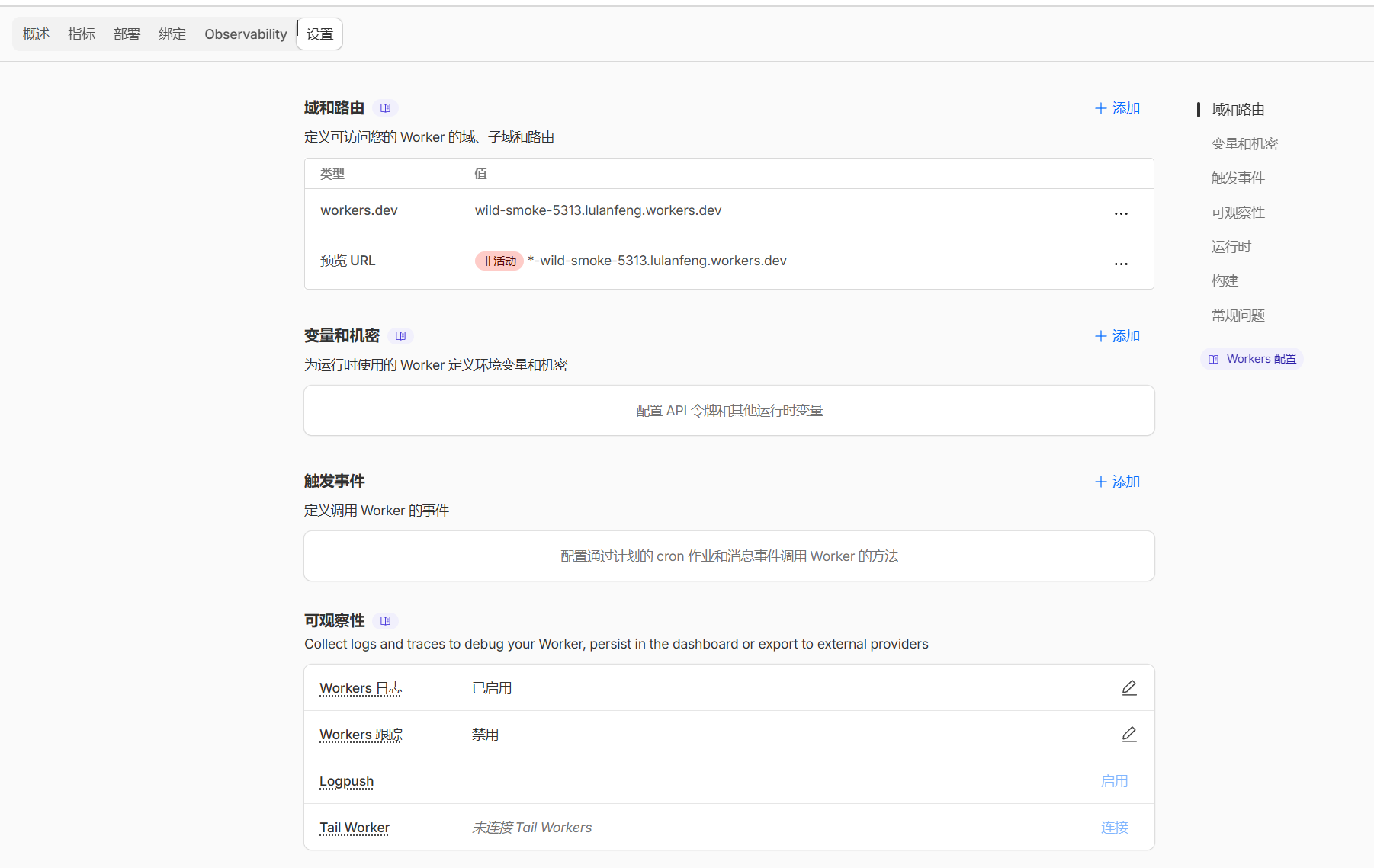
4.2 服务测试
部署完成后,建议使用专业工具进行测试,以确保缓存策略与 CORS 配置生效。
推荐测试工具:
- REDbot:用于检查 HTTP 缓存和 CORS 头部。
- 浏览器开发者工具:检查网络请求的
Response Headers,确认cache-control和access-control-allow-origin等字段是否正确返回。
五、总结
通过以上步骤,您已经成功搭建了一个基于 Cloudflare 生态的图片代理服务。此方案具有以下优势:
- 性能优异:利用 Cloudflare 全球边缘网络和缓存,大幅提升图片加载速度。
- 成本可控:R2 存储定价低廉,Workers 免费额度足以应对中小型博客流量。
- 配置灵活:通过 Workers 脚本可轻松定制缓存策略、访问规则和错误处理。
- 维护简单:无需自建服务器,所有服务均在 Cloudflare 平台统一管理。
现在,您可以在博客中使用形如 https://blog.lonecho.com/图片文件名.jpg 的链接来访问托管在 R2 中的图片了。
无回应:“为typecho建立cloudflare图床”